How to add quick selection of counterparties by "Phone number" in configurations where the "Integration with virtual ATC" module is installed
In the modules "Integration with virtual PBX" for virtual ATC "StreamTelecom", "Binotel", "Fonet" for configurations on regular forms ("UTP", "UVP", "UT 2.3.", "SRM from Rarus 1.4", etc.), the "SRM_Phone Number" requisite (synonym "Virtual ATC: Phone Number") has been added to the "Contact Information" information register. This requisite stores the phone number without punctuation marks and without "38" - only numbers, example: 0442289404 or 0980765855.
This instruction shows how to add a quick search on the counterparty list form to be able to search for counterparties and contact persons of counterparties by phone number in the contact information. That is, it does not matter how the phone number was entered, it can always be found by the sequence of digits in this number.
Learn More
1. The summary register "Contact information" added the requisite "СРМ_НомерТелефона" (synonymous with "Virtual ATC: Phone number").

Fig. 1. Register of information "Contact information". Requisite "CRM_ Phone number".
2. In the journal "Counterparties" in the list of objects search, select "Configure new selection".
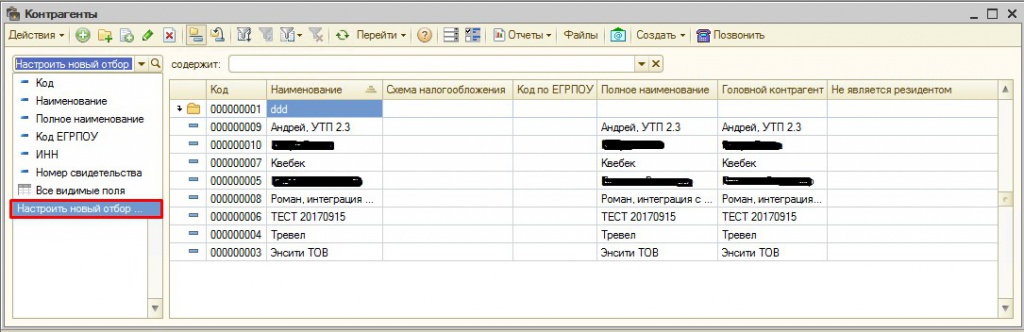
Fig. 2. Setting up a new selection in the list of search for journal objects in the directory "Counterparties".
3. In the form of processing "Search for objects" specify the search area:
1) contact information (search by counterparty);
2) contact information of counterparty contacts (search by counterparty contact) .
We need to specify search fields, for example "Phone number." We add an additional restriction on the field "CRM_Phone Number" by the type of comparison "Contains".
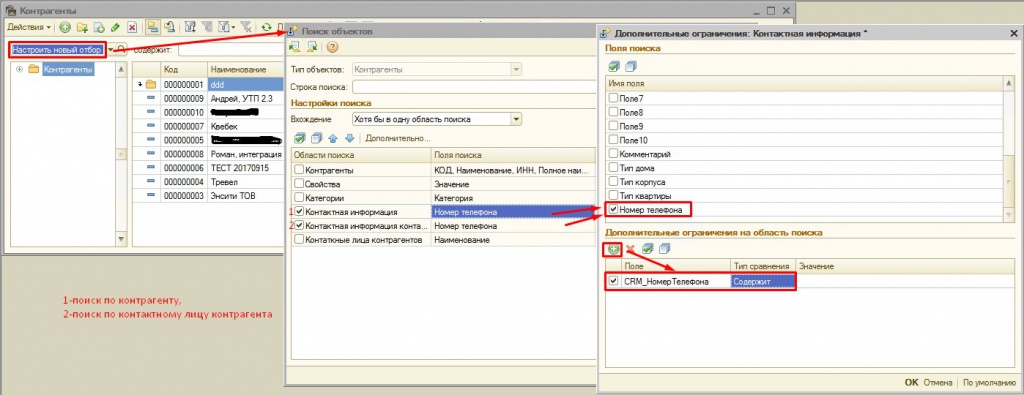
Fig. 3. Form of processing "Search for objects." Filling the field and the search area. Specifying additional constraints.
4. Form of processing "Search for objects." Saving search settings.
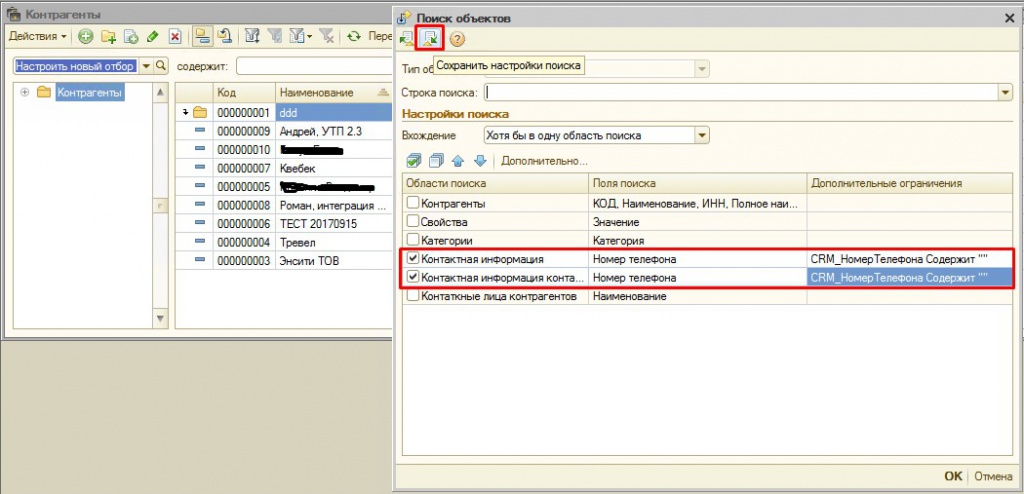
Fig. 4. Saving search settings in the form of "Object search" processing.
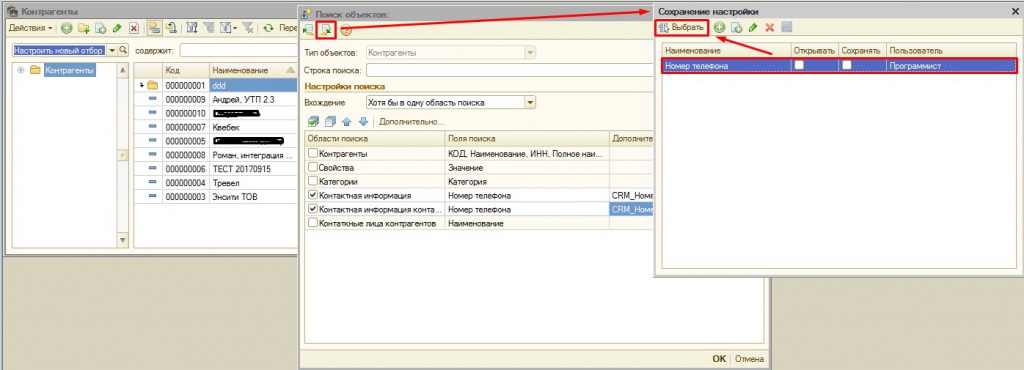
Fig. 4.1. Save search settings "Phone number" by user.
5. After saving the settings in the journal "Counterparties", a new method of selecting "Phone number".
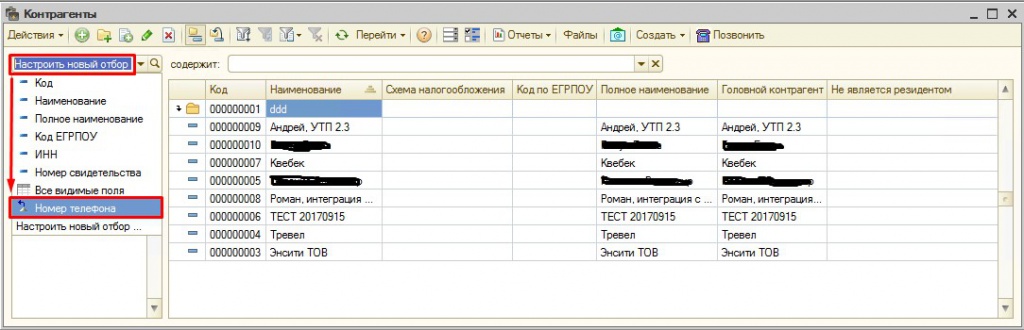
Fig. 5. Added a new way to select "Phone number".
6. In the directory "Accounts", in the field contains the phone number, search for a counterparty card or contact person for a given phone number.
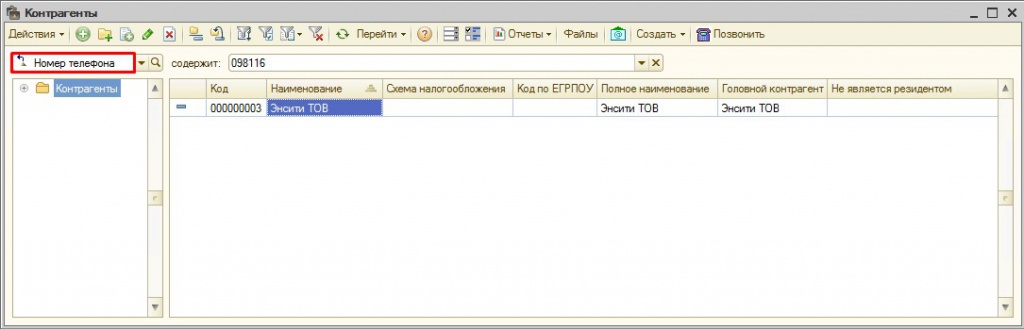
Fig. 6. Search for a counterparty card or contact person for a given phone number.
LLC "NCT"